
Screenshots
App details
- Version
- 2.84.9 | 2.82 | 2.33
- Size
- 14.50 MB
- Updated
- May 22, 2023
- Requires
- Windows 8
- Language
- English | Spanish
- License
- Free
- Developer
- René Berber
- Category
- Windows OS
SoftPas in:
This product is also available in the following languages:
About Transmission Qt
Download Transmission Qt – Free Minimalist BitTorrent Client
Overview
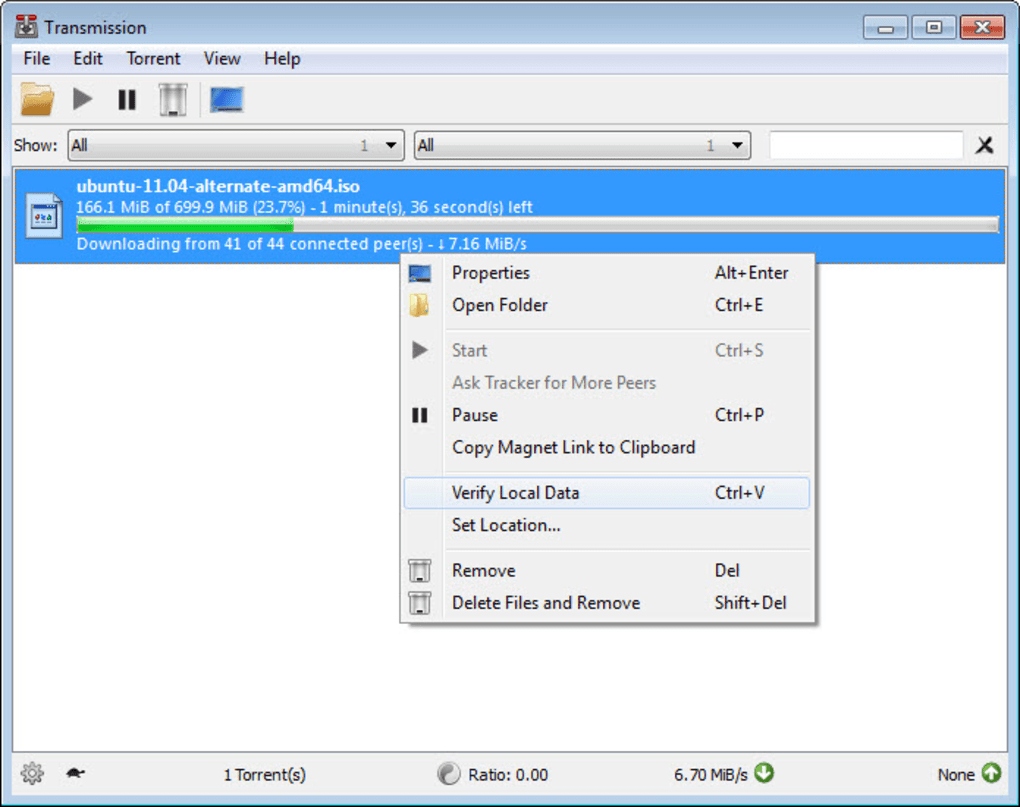
Transmission Qt brings the clean, lightweight experience of the beloved macOS BitTorrent client to Windows users. Built as an unofficial port, the program retains the same minimalist philosophy: a simple interface, fast performance, and all the core features you need to download and seed torrents without the clutter of ads or unnecessary bells and whistles. When you launch Transmission Qt, you are greeted by a tidy window that displays only the most important information—torrent name, progress, download and upload speeds, and estimated time remaining. The design focuses on usability, allowing you to set priority levels, impose speed limits, and toggle encryption with just a click on the iconic turtle button at the bottom of the screen. Although the client does not dive deep into advanced statistics like some commercial alternatives, it compensates with speed, stability, and a low memory footprint that makes it ideal for older hardware or users who value a distraction‑free downloading experience. Whether you are a seasoned torrent enthusiast or a newcomer looking for a trustworthy, secure tool, Transmission Qt offers a straightforward solution that respects your bandwidth and privacy.
Key Features
- Minimalist User Interface – A clean layout that shows essential torrent data without overwhelming the user.
- Speed Limiting with Turtle Icon – Instantly set global upload/download limits or adjust per‑torrent priorities.
- Filtering and Sorting – View torrents by status (downloading, seeding, paused), sort by name, date added, queue order, or total activity.
- Encryption Support – Optional data encryption keeps your transfers private and helps bypass throttling.
- Labeling and Grouping – Organize torrents into custom groups for easier management.
- Low Resource Consumption – Uses minimal RAM and CPU, making it suitable for low‑end PCs.
- Cross‑Platform Consistency – Mirrors the macOS experience, ensuring a familiar workflow for users switching between operating systems.
- Automatic Updates – Receives regular bug‑fix releases that improve tracker compatibility and overall stability.
Installation & Usage Guide
Getting Transmission Qt up and running is a breeze. Follow these steps to download, install, and start seeding torrents in minutes:
- Download the Installer – Visit the official project page or a trusted software repository and click the Download button for the latest Windows .exe file.
- Run the Installer – Double‑click the downloaded file. The wizard will guide you through the typical installation process. Choose the destination folder, agree to the license terms, and select whether you want a desktop shortcut.
- Launch the Application – After installation, open Transmission Qt from the Start menu or the desktop shortcut. The first launch may prompt you to allow network access; grant permission to enable torrent communication.
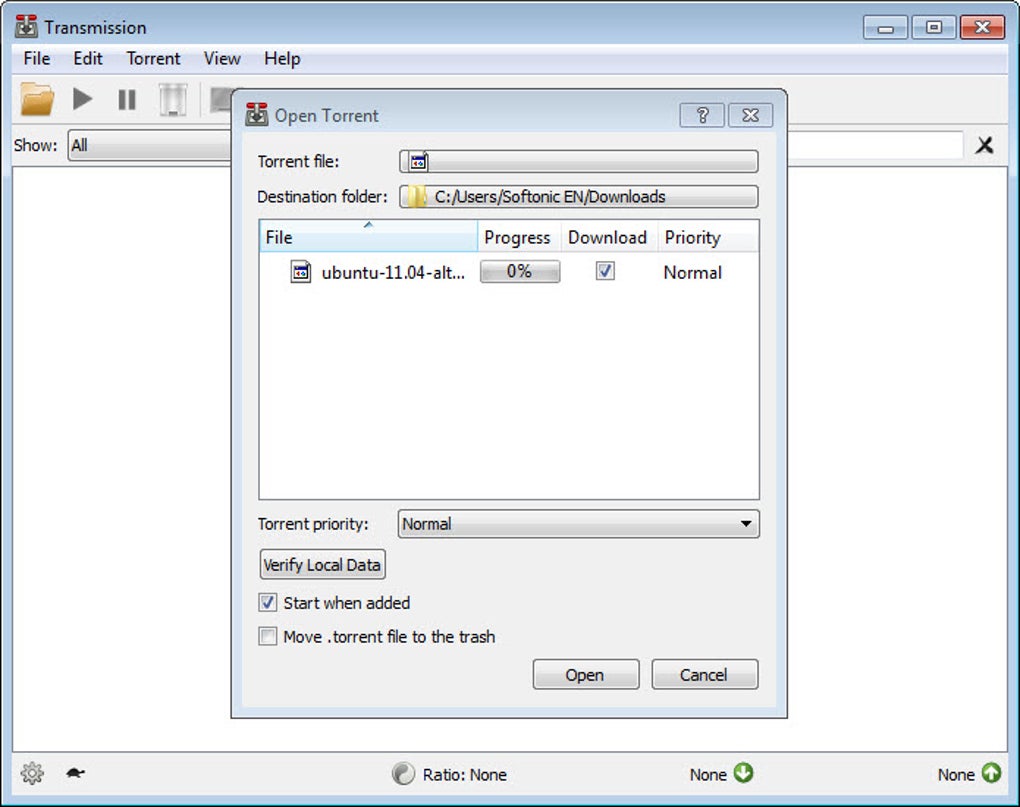
- Add a Torrent – Click the “+” button or drag‑and‑drop a .torrent file into the window. You can also paste a magnet link via the “Add Magnet Link” option.
- Configure Speed Limits – Click the turtle icon at the bottom to set global download/upload caps or adjust limits for individual torrents by right‑clicking them and selecting “Limit Speed”.
- Use Filters – Use the filter bar to display only downloading, seeding, or paused torrents. Combine filters with sorting options to keep your list organized.
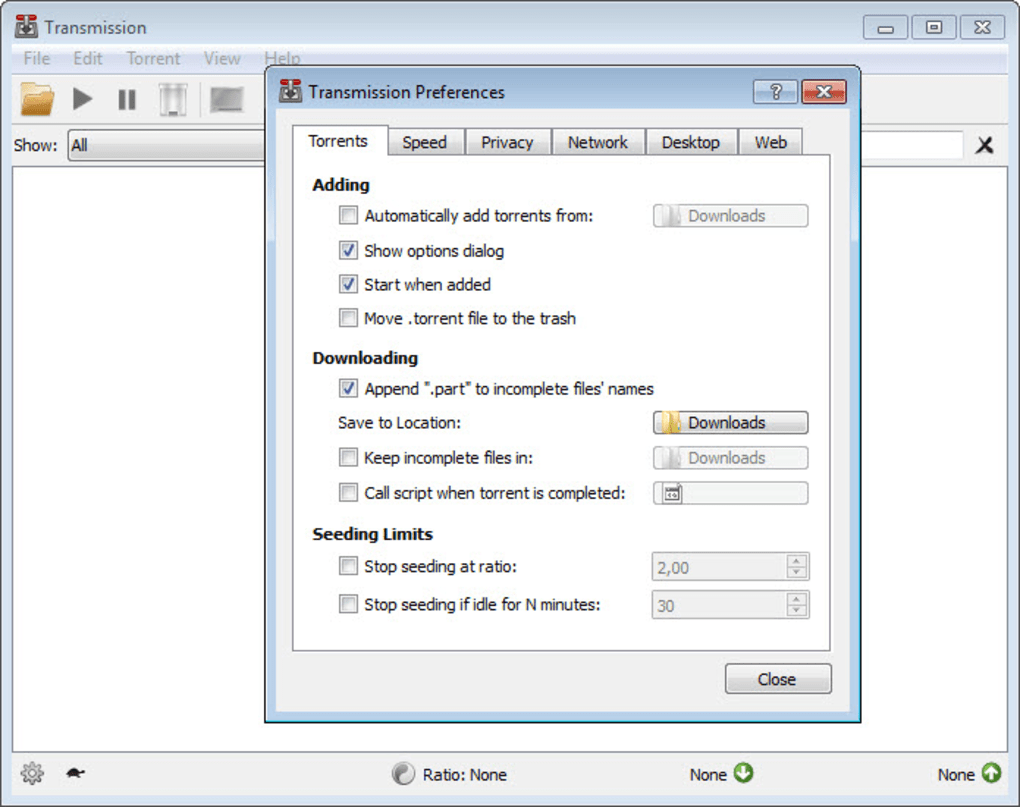
- Enable Encryption – Open the preferences (Edit → Preferences), navigate to the “Network” tab, and enable “Encryption”. This adds a layer of privacy and can improve connectivity on restrictive networks.
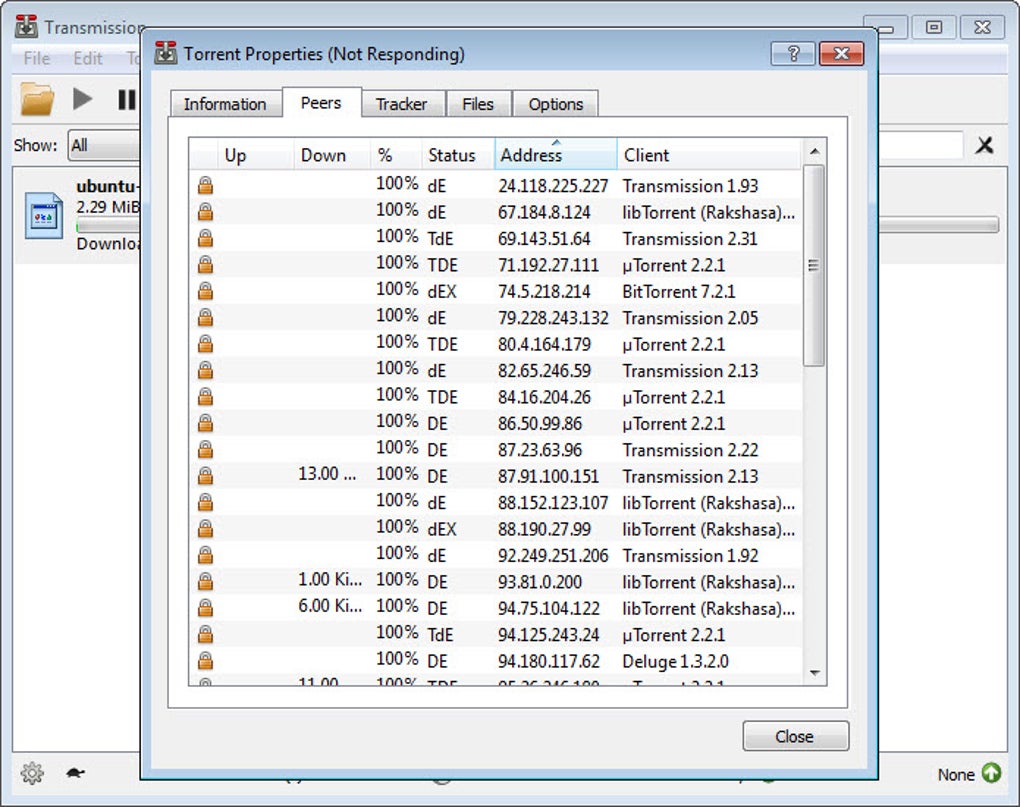
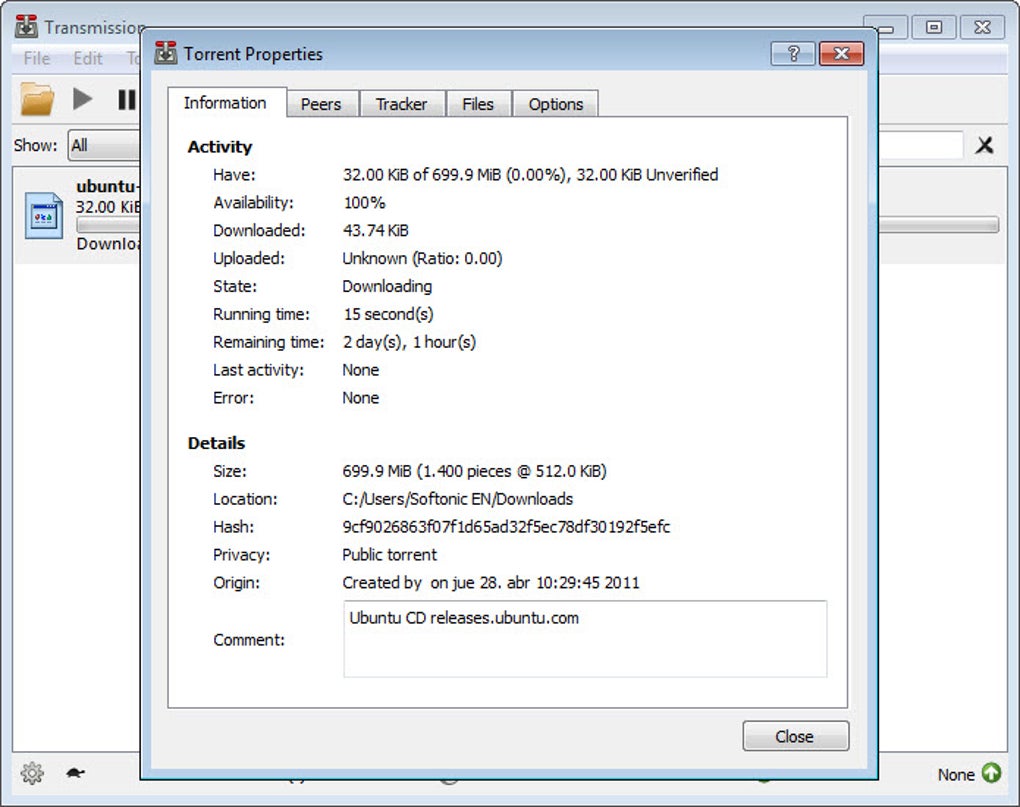
- Monitor Progress – The main window shows real‑time statistics: percentage completed, peers, seeds, and ETA. Adjust priorities on the fly by right‑clicking a torrent and choosing “High”, “Normal”, or “Low”.
Because Transmission Qt is lightweight, it launches quickly and stays responsive even with dozens of active torrents. The client also supports remote RPC control, allowing you to manage your downloads from another device via a web interface if you enable the feature in the preferences.
System Compatibility & Pros / Cons
Supported Operating Systems: Windows 7, 8, 8.1, 10, and 11 (64‑bit). The application is compiled with the Qt framework, ensuring consistent behavior across all supported Windows releases.
Pros
- Free and open‑source – no hidden fees or ads.
- Minimal RAM/CPU usage, perfect for older PCs.
- Intuitive UI reduces learning curve for new users.
- Global speed limiter with a single‑click turtle icon.
- Built‑in encryption protects privacy.
- Robust filtering and sorting capabilities.
- Regular updates fix tracker and UDP compatibility issues.
Cons
- Lacks advanced statistics and bandwidth graphs found in uTorrent or qBittorrent.
- No built‑in torrent search engine.
- Remote RPC feature requires manual configuration.
- Occasional UI scaling issues on high‑DPI displays (can be mitigated with Windows scaling settings).
Review Summary: Transmission Qt shines as a no‑frills BitTorrent client that delivers speed, stability, and a clutter‑free experience. While power users may miss deep analytics, the trade‑off is a lightweight, secure tool that respects system resources.
Frequently Asked Questions
Is Transmission Qt completely free?
Yes, Transmission Qt is released under the MIT license and can be downloaded, used, and shared without any cost or advertising.
Can I encrypt my torrent traffic?
Absolutely. The client includes optional data encryption that can be enabled in the Network preferences, helping to keep your transfers private.
Does Transmission Qt support magnet links?
Yes, you can add magnet links directly via the “Add Magnet Link” option or by pasting the link into the Add Torrent dialog.
How does Transmission Qt handle UDP tracker errors?
Recent updates fixed the UDP tracker connection issue on big‑endian computers, ensuring reliable tracker communication across all supported Windows platforms.
Can I control Transmission Qt remotely?
Yes, the built‑in RPC (Remote Procedure Call) interface can be enabled in the preferences, allowing you to manage torrents from a web browser or mobile app.
Conclusion & How to Get Transmission Qt
Transmission Qt stands out in a crowded BitTorrent market by delivering exactly what most users need: a fast, secure, and ultra‑light client that works flawlessly on Windows. Its minimalist design removes the noise often associated with torrent software, while the turtle‑icon speed limiter and built‑in encryption provide practical tools for bandwidth management and privacy. Though power users may seek richer analytics, the trade‑off is a smoother, less resource‑hungry experience that runs well on both modern and legacy machines. If you’re looking for a free, open‑source torrent client that respects your system’s performance and your personal data, Transmission Qt is an excellent choice.
Ready to try it? Download Transmission Qt now and start enjoying a clutter‑free torrenting experience today.
Guides & Tutorials
How to install Transmission Qt
- Click the Download button above.
- Once redirected, accept the terms and click Install.
- Wait for the Transmission Qt download to finish on your device.
How to use Transmission Qt
This software is primarily used for its core features described above. Open the app after installation to explore its capabilities.
User Reviews
No reviews yet. Be the first to share your experience.
You may also like
more
Llama 2
Free-to-use large language model As the new addition to Meta’s arsenal of langua...

NotebookLM
Revolutionizing the note-taking and idea-generation process NotebookLM is an exp...

Github co pilot
AI-inspired software development and coding platform GitHub Copilot is a browser...

Google Gemma
Google’s lightweight AI models Introducing Google Gemma , a family of cutting-ed...

AI Image Enlarger
A free app for Windows, by ai-image-larger. AI Image Enlarger is a free software...

DALL E
AI-driven text-to-image transformation engine DALL·E is a free graphic and desig...